

How to Improve Smart Home WiFi Coverage
Table of Contents
- Why Smart Home Devices Struggle With WiFi Coverage
- Optimizing Router Placement for Smart Devices
- WiFi Range Extender vs Mesh System: Which Fixes Dead Zones Better
- How to Troubleshoot Smart Home WiFi Connection Issues
- Firmware Updates, Channels, and WiFi Analyzer Tools
- Security and Interference: What Most Guides Skip
- When to Upgrade Your Hardware (and When Not To)
- Frequently Asked Questions
Last Updated: September 16, 2026
Why Smart Home Devices Struggle With WiFi Coverage
Smart home WiFi problems rarely come from a weak router alone. They come from distance, walls, and too many devices competing for the same signal. This guide from Austin's Electronics covers what actually fixes dead zones.
Optimizing Router Placement for Smart Devices
Router placement is the highest-impact change you can make, and it costs nothing. The best spot is central, elevated, and out in the open, ideally on the main floor where most smart devices live.
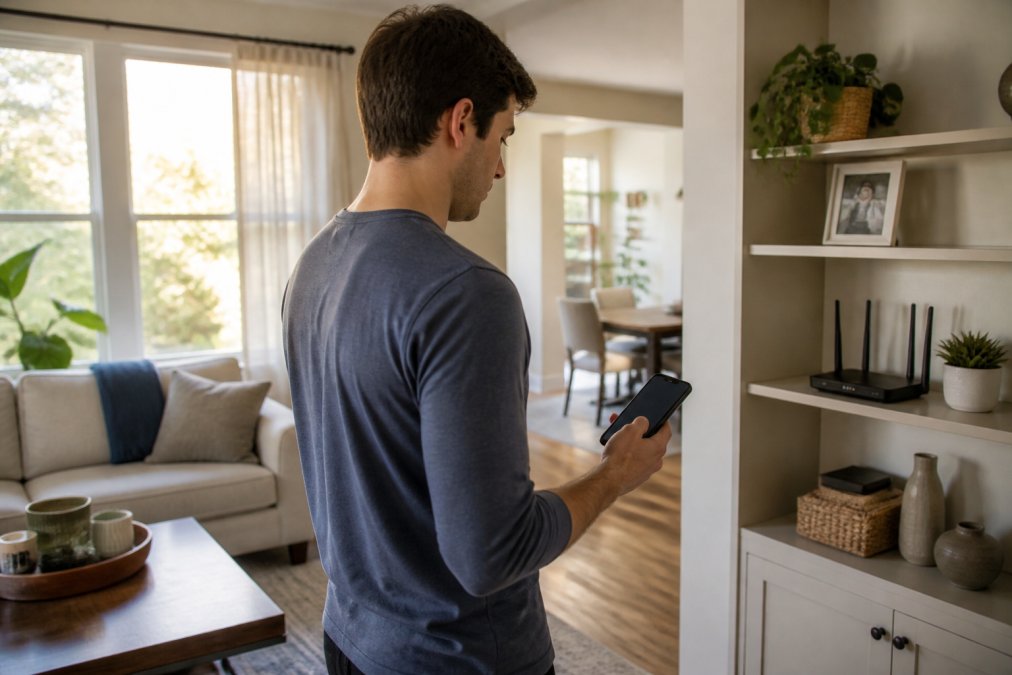
Where to Put Your Router for Maximum Smart Device Range
Put your router as close to the center of your home as your internet line allows. Every wall reduces signal strength and every meter adds latency, so a corner office or basement spot means half your home is working against you.
Three placement rules that matter most:
- Elevate the router. Shelves and tabletops beat the floor. Radio frequency travels best through open air.
- Keep it away from metal and water. Fish tanks, refrigerators, and metal shelving absorb or reflect signal.
- Point antennas vertically. Most routers broadcast strongest perpendicular to the antenna.
What Blocks WiFi Signal the Most in a Typical Home
The worst offenders are dense materials, not distance. Brick, concrete, and plaster-and-lath walls absorb far more signal than drywall, while metal ductwork, foil-backed insulation, and mirror backing can block a signal almost entirely.
WiFi Range Extender vs Mesh System: Which Fixes Dead Zones Better
A WiFi range extender receives your existing signal and rebroadcasts it to cover a dead zone. A mesh system uses multiple nodes that work as one network with a single SSID. The right choice depends on your dead zones and device count.
Range Extenders: Cheaper, But With Tradeoffs
Range extenders cost less and take minutes to set up. Plug one in near the edge of your coverage and it rebroadcasts the signal further, solving a single stubborn dead zone on a budget.
Mesh Systems: Consistent Coverage for Many Devices
Mesh systems are the better answer for many smart devices across a large home. Each node talks to the others over a dedicated backhaul, so devices see one seamless network. Tri-band systems add a separate radio for that backhaul, keeping more bandwidth free.
| Option | Best For | Main Tradeoff |
|---|---|---|
| Range extender | One or two dead zones | Roughly half the throughput |
| Mesh system (dual-band) | Medium homes, moderate device count | Backhaul shares device bandwidth |
| Mesh system (tri-band) | Large homes, many smart devices | Higher upfront cost |
| Powerline adapter | Rooms with thick walls | Depends on your home's wiring |
How to Troubleshoot Smart Home WiFi Connection Issues
Start with the simplest fix: restart your router and modem, then reconnect the affected device. Most connection issues resolve here in two minutes.
Step-by-Step: Restart, Rechannel, and Reconnect
Work through these in order. Stop as soon as the device stays connected.
- Power cycle the router and modem. Unplug both, wait 30 seconds, plug the modem back in first, then the router.
- Restart the problem device. Pull the battery or use its app to reboot it.
- Move the device or router a short distance if either sits against a wall or metal surface.
- Change the WiFi channel. Log into your router's settings and switch to a less congested channel.
- Switch frequency. Move the device to the 5 GHz band if it's close, or 2.4 GHz if it's far and behind walls.
- Reconnect and re-add the device to its app if it still won't hold.
Firmware Updates, Channels, and WiFi Analyzer Tools
Firmware updates fix the bugs and security holes that cause dropouts, so check every few months. Manufacturers push them through the router's admin app or web interface, and most take under five minutes.
Security and Interference: What Most Guides Skip
Nearly every coverage guide stops at "add a node." Two skipped things can quietly wreck a smart home network: the security surface every extender and mesh node adds, and interference from appliances already in your house.
Every Extender Is a New Door Into Your Network
A range extender or mesh node is not a passive antenna. It is another wireless access point with its own admin login, firmware, and radio, another device an attacker can probe, usually shipped with a default admin password and factory SSID that never gets changed.
The practical risks are specific:
- Default credentials. Extenders frequently ship with admin/admin or a printed default password. Anyone on your network who reaches the extender's setup page can change its settings or point it at a rogue network.
- WPS push-button pairing. Many extenders keep Wi-Fi Protected Setup enabled by default. WPS PIN mode has a well-documented brute-force weakness, and the push-button mode lets anyone within range join if they can physically press the button. Turn WPS off unless you are actively pairing.
- Weak or mismatched encryption. If the extender rebroadcasts on WPA2 while your router runs WPA3, the whole extended network drops to the weaker standard. Match the encryption mode across every node.
- Stale firmware. Extenders are the most commonly abandoned device on a home network. Manufacturers patch them for a year or two, then stop. An unpatched node is an open door that never closes.
A short hardening checklist that costs nothing:
- Change the admin password on every extender and mesh node the day you install it.
- Disable WPS after setup.
- Match the encryption mode (WPA2-AES or WPA3) across router and all nodes.
- Give the guest network its own SSID and put untrusted devices, cheap plugs, no-name cameras, on it, isolated from your main network.
- Check node firmware every few months, not just the router's.
Your Own Appliances Are Jamming You
The 2.4 GHz band is shared spectrum, not reserved for Wi-Fi, and several household devices broadcast on it with far more power than your router's radio.
- Microwave ovens. A leaking microwave can flood the 2.4 GHz band for the two or three minutes it runs. If a camera drops every time someone reheats lunch, this is almost always the cause.
- Cordless phones. Older 2.4 GHz handsets transmit continuously while in use and often sit on a channel that overlaps your router's.
- Baby monitors. Many budget monitors use 2.4 GHz and transmit constantly, not just when the parent unit is active.
- Bluetooth hubs and speakers. Bluetooth frequency-hops across 2.4 GHz and can cause brief, repeated interference near the hub.
- Wireless doorbells and cameras themselves. A camera with a weak signal retransmits aggressively, which adds to the congestion it is already suffering from.
Where Security and Interference Meet
One overlap worth naming: an extender placed to fix interference can worsen security, because it rebroadcasts a weak, noisy signal further into the house, often at lower encryption. Fix interference first with channel and band changes; add hardware only when the layout genuinely requires it.
When to Upgrade Your Hardware (and When Not To)
Most guides dodge this decision, telling you to buy a mesh system or optimize first without a way to choose. Here is a framework you can actually run.
The Three Questions That Decide It
Answer these in order. The first "yes" usually tells you what to do.
- Does your router support Wi-Fi 6 (802.11ax) or newer? If it is Wi-Fi 5 (802.11ac) or older, it is a genuine bottleneck for a modern smart home, and no amount of channel tuning will fix the underlying radio.
- How many devices are connected at once? Consumer routers commonly handle 20 to 30 simultaneous devices comfortably. If you are running 40 or more, cameras, locks, plugs, sensors, thermostats, TVs, you are likely hitting the router's connection table limit, not its range limit. That is a hardware problem.
- How many dead zones do you actually have? One dead zone is a placement or extender problem. Three or more spread across floors is a mesh problem. The count matters more than the size of the house.
The Real Cost Ladder
Hardware upgrades are not one decision. They are a ladder, and each rung solves a different problem at a different price. The exact numbers move with sales and model years, but the shape of the ladder is stable:
| Rung | Typical spend | Solves | Does not solve |
|---|---|---|---|
| Reposition router, change channel, update firmware | $0 | Single dead zone, congestion, dropout bugs | Thick walls, whole-floor gaps |
| Powerline adapter | Low | One room behind thick walls | Homes with split or older wiring |
| Single range extender | Low | One stubborn dead zone | Whole-house coverage, device count |
| Dual-band mesh (2-3 nodes) | Mid | Multi-floor coverage, moderate device count | Heavy 4K camera loads |
| Tri-band mesh (3+ nodes) | High | Large homes, many devices, dedicated backhaul | Nothing, if your internet plan is the limit |
| New Wi-Fi 6E or Wi-Fi 7 router | High | Device count, congestion, future-proofing | Coverage gaps a single router cannot reach |
Two rules keep people from overspending:
- Match the rung to the problem, not to the marketing. A single dead zone does not need a three-node mesh system. A 40-device home does not get fixed by a $30 extender.
- Your internet plan is a ceiling. If you pay for a mid-tier plan, a top-tier mesh system will not make your devices faster. It will only make the coverage more even. Check your plan before you check the router aisle.
The ROI Question, Answered Honestly
The honest math: if your router supports a modern wireless standard and handles your device count, optimizing it first costs nothing and often closes most of the gap. Upgrade when the hardware genuinely cannot keep up, old standard, device count over its limit, or gaps no single router can reach.
What to Buy First If You Do Upgrade
If the framework says upgrade, the order that gets the most coverage per dollar is usually:
- A modern router that supports the current wireless standard and your device count.
- One mesh node per floor that has a dead zone, added one at a time and tested before buying the next.
- A wired backhaul between nodes if you can run cable. Ethernet backhaul is the single biggest performance upgrade in a mesh system, and it costs less than a second node.
Frequently Asked Questions
What is the best way to improve WiFi coverage in my house?
Start with router placement: put it central, elevated, and away from walls and metal objects. If dead zones remain, a mesh system usually beats a single extender for whole-home coverage. For stubborn spots, a powerline adapter or wired access point works well. Run firmware updates and switch to a less crowded channel before buying new hardware.
Do WiFi range extenders really work for smart home devices?
They work, but with caveats. An extender rebroadcasts your signal, which can cut throughput roughly in half and sometimes confuses devices that see two SSIDs. For a single dead zone and a few low-bandwidth smart devices, an extender is fine. For ten or more devices spread across a home, a mesh system with dedicated backhaul gives more stable results.
Does a mesh system improve smart home device stability?
Yes, in most multi-device homes. Mesh nodes hand devices off between access points using one SSID, so bulbs, cameras, and plugs stay connected as you move around. A dedicated backhaul band keeps node-to-node traffic off the same channel your devices use. If your smart devices drop offline regularly, mesh is often the fix that sticks.
What blocks WiFi signal the most in a typical home?
Concrete and brick walls, metal studs, foil-backed insulation, mirrors, aquariums, and large appliances like refrigerators and microwaves. A router placed in a closet or behind a TV loses significant range. Moving it to an open, central spot often improves signal strength more than any add-on hardware you can buy.
Dead zones and dropped connections don't have to run your smart home. Start with placement, firmware, and channel changes, then add a mesh system or extender only if you still need it. Austin's Electronics offers the routers, mesh nodes, and smart home devices to close the gaps, backed by a catalog built for connected homes. Continue shopping with Austin's Electronics and get your smart home running on a signal you can trust.