

Smart Security Camera WiFi Signal Fix: 7 Steps
Table of Contents
- Why Your Smart Security Camera WiFi Signal Is Weak
- Step 1: Reposition Your Camera and Router for Better Wireless Signal Strength
- Step 2: Check 2.4GHz vs 5GHz for Security Cameras
- Step 3: Use the Best WiFi Extender for Security Cameras
- Step 4: Diagnose Signal Interference and Network Congestion
- How to Improve Smart Home WiFi Coverage for All Devices
- Step 5: Update Firmware and Factory Reset Your Camera
- Step 6: Verify WiFi Credentials and Security Settings
- Frequently Asked Questions
Last Updated: September 28, 2026
Why Your Smart Security Camera WiFi Signal Is Weak
A weak security camera wifi signal often comes down to distance, interference, or outdated equipment. When your camera struggles to connect or drops frames, you're not getting the security you paid for. The good news: most signal problems have straightforward fixes.
Austin's Electronics carries solar-powered and battery-operated security cameras designed for reliable outdoor performance. But even the best hardware needs the right setup to shine. Let's walk through the exact steps to diagnose and fix your smart security camera wifi signal issues.

Step 1: Reposition Your Camera and Router for Better Wireless Signal Strength
Distance is the biggest factor in wireless signal strength. Concrete and brick cut range by 50% or more.
Move your router to a central, elevated location. Avoid closets and enclosed spaces.
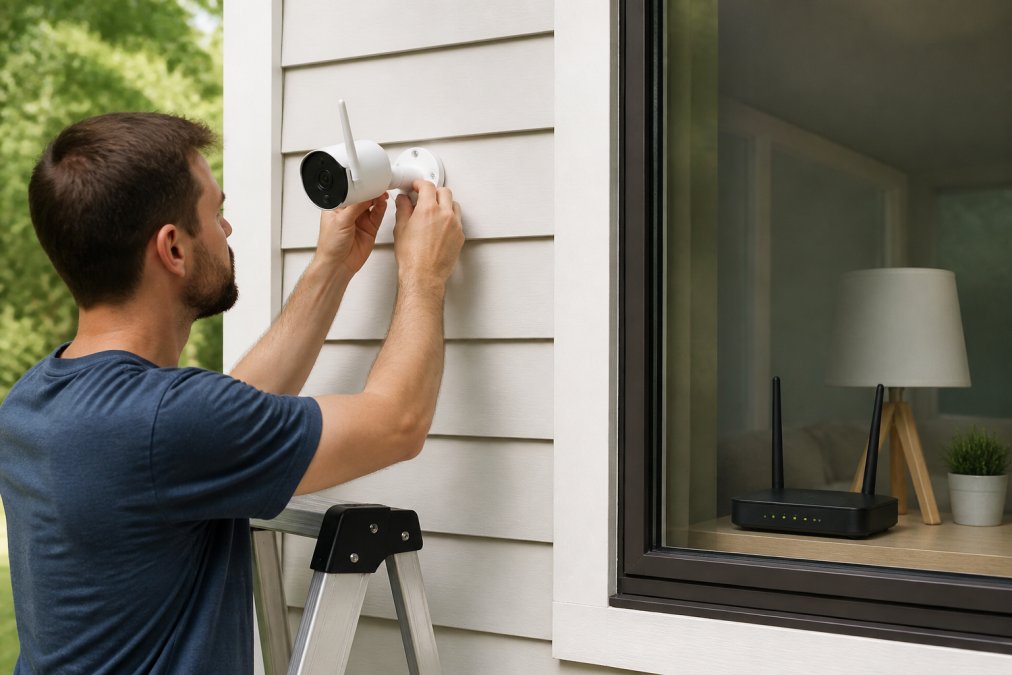
Position your camera with a clear line of sight to the router.
Remove obstacles between router and camera:
- Move furniture away from the router
- Keep the camera away from dense trees
- Mount cameras on walls facing inward, not outward into open fields
Step 2: Check 2.4GHz vs 5GHz for Security Cameras
Most routers broadcast on two frequency bands: 2.4GHz and 5GHz.
2.4GHz frequency band:
- Longer range (travels farther through walls)
- Slower speeds
- More crowded (microwaves, baby monitors, cordless phones use this band)
- Better for cameras far from the router
5GHz frequency band:
- Shorter range (gets blocked by walls more easily)
- Faster speeds
- Less crowded
- Better for cameras close to the router with a clear path
When to Use 2.4GHz
Use 2.4GHz if your camera is more than 50 feet away or has multiple walls between it and the router. Most security cameras default to 2.4GHz because range matters more than speed.

When to Use 5GHz
Switch to 5GHz only if your camera is close to the router with a clear line of sight. If the connection drops, fall back to 2.4GHz.
Step 3: Use the Best WiFi Extender for Security Cameras
A WiFi range extender copies your signal and rebroadcasts it to fill dead zones.
Position your extender:
- In a central location with clear sightlines
- Away from metal objects and appliances
- At the same height as the router if possible
- On the same frequency band as your camera
Step 4: Diagnose Signal Interference and Network Congestion
Household appliances on the 2.4GHz band, microwaves, cordless phones, baby monitors, Bluetooth speakers, create interference. A microwave at full power can reduce signal strength by 50% within 10 feet.
Identify Specific Interference Sources
Start by mapping which appliances are near your router or camera:
High-interference devices (2.4GHz band):
- Microwave ovens (peak interference during operation)
- Cordless DECT phones and baby monitors
- Bluetooth speakers, headphones, and smartwatches
- Wireless keyboards, mice, and game controllers
- Older wireless security systems and garage door openers
- WiFi-enabled smart home devices (thermostats, doorbells)
Medium-interference devices:
- Refrigerators with WiFi-enabled ice makers
- Wireless printers
- USB 3.0 devices (external hard drives, hubs)
Use a WiFi Analyzer App to Map Dead Zones
Download a free WiFi analyzer app to measure signal strength and identify interference patterns.
Solar Wireless WiFi Camera: Outdoor 4G →
What to measure:
- Signal strength (RSSI): Look for readings above -50 dBm (excellent), between -50 and -70 dBm (good), and below -70 dBm (weak). Your camera needs at least -70 dBm for stable video; -60 dBm or better is ideal for 1080p or higher.
- Channel congestion: The app shows which WiFi channels nearby networks are using. On 2.4GHz, channels 1, 6, and 11 don't overlap. If your neighbors' networks are crowded on channel 6, switch to channel 1 or 11 in your router settings.
- Signal-to-noise ratio (SNR): This measures how much stronger your signal is compared to interference. Aim for SNR above 25 dB. Below 15 dB means interference is severe.
Optimize Your Router's Channel Selection
If nearby networks use the same channel as your router, they interfere with each other.
Manage Network Congestion with QoS Settings
Network congestion occurs when too many devices compete for bandwidth, starving your camera of throughput.
To enable QoS:
- Log into your router's admin panel.
- Look for "QoS," "Traffic Management," or "Bandwidth Control" in the settings menu.
- Find your camera's IP address or MAC address (visible in the app or on the device label).
- Set your camera to "high priority" or assign it a minimum bandwidth guarantee (e.g., 2-5 Mbps for 1080p video).
- Save and reboot the router.
How to Improve Smart Home WiFi Coverage for All Devices
A strong security camera WiFi signal means nothing if your whole network is weak. But outdoor cameras face unique challenges that indoor troubleshooting doesn't address. Material composition, weatherproofing, and environmental factors all degrade signal strength in ways most guides ignore.
Conduct a Site Survey and Measure Signal Strength
Walk your property with a WiFi analyzer app. Look for dead zones below -70 dBm. Test signal strength at the exact camera mounting location.
Account for Outdoor Material Attenuation
Outdoor cameras face signal loss from building materials. Understanding material attenuation is critical for placement.
Material signal attenuation (approximate loss):
- Wood siding and frames: 3-5 dB loss (minimal impact)
- Brick and concrete: 10-15 dB loss (significant)
- Metal gutters, downspouts, and aluminum siding: 15-20 dB loss (severe)
- Metal roof or metal flashing: 20+ dB loss (can block signal entirely)
- Glass windows: 2-3 dB loss (minimal)
- Wet wood or rain-soaked materials: 5-10 dB additional loss
Choose Weatherproofing That Doesn't Block Signal
Weatherproofing enclosures protect cameras but can block WiFi. Material and thickness matter.
Weatherproofing materials and their impact:
- Plastic (polycarbonate or ABS): Minimal signal loss (1-2 dB); best choice for outdoor cameras.
- Metal mesh or metal-lined enclosures: Severe signal loss (10+ dB); avoid unless the camera has external antenna ports.
- Rubber gaskets and silicone seals: Minimal impact on signal (less than 1 dB).
- Thick foam or insulation: Can reduce signal by 3-5 dB; use sparingly.
Position Your Router and Access Points for Outdoor Coverage
Upgrade routers over five years old. WiFi 6 handles more devices and penetrates obstacles better. WiFi 5 is a solid mid-range option.
Use Mesh Networks for Seamless Outdoor Coverage
Mesh networks use multiple access points that communicate seamlessly, providing coverage across your property.
Reduce Interference and Optimize Placement
Move your router away from microwaves, refrigerators, metal objects, and dense vegetation.
Step 5: Update Firmware and Factory Reset Your Camera
Check your camera's app for firmware updates. Outdated firmware causes connectivity issues.
Step 6: Verify WiFi Credentials and Security Settings
A typo in your WiFi password causes connection failures. Passwords are case-sensitive.
Frequently Asked Questions
Why is my security camera not connecting to WiFi?
A weak WiFi signal is the most common culprit. Check the distance between your camera and router, most smart security cameras need to be within 30-50 feet for reliable connectivity. Also verify your WiFi password is correct, your router is broadcasting the SSID, and your camera supports your WiFi band (2.4GHz or 5GHz). If the signal is still weak, physical obstructions like walls, metal, or outdoor weather can block transmission. Try repositioning your router or camera to a more central location.
How can I boost the WiFi signal for my outdoor security camera?
Start by repositioning your router to a higher, central location away from obstructions. A WiFi range extender or mesh network system can dramatically extend coverage to outdoor dead zones. For outdoor cameras specifically, choose a solar-powered model like the Solar Wireless WiFi Camera to eliminate power constraints that force poor placement. Check your frequency band, 2.4GHz travels farther but slower, while 5GHz is faster but shorter range. Finally, minimize signal interference from microwaves, cordless phones, and baby monitors by moving your router away from these appliances.
What is the best frequency for security camera WiFi: 2.4GHz or 5GHz?
2.4GHz is better for long-range outdoor coverage and penetrating walls; use it for cameras in dead zones or far from your router. 5GHz offers faster speeds and lower latency, making it ideal for multiple cameras streaming simultaneously or for cameras close to your router. Many modern routers broadcast both bands, connect your camera to whichever gives the strongest signal in its location. Check your camera's specifications to confirm it supports your chosen band, as older models may only support 2.4GHz.
Does a mesh network improve security camera performance?
Yes. A mesh network creates multiple access points throughout your home, eliminating dead zones and providing consistent signal strength to all cameras. Unlike a single router or range extender, mesh systems use Ethernet backhaul to maintain fast, stable connections without signal degradation. This is especially valuable for homes with multiple outdoor cameras or large properties. The upfront cost is higher than a basic extender, but the reliability and coverage improvement make it worthwhile for serious smart home security setups.